We have a number of websites and they are all structured in different ways but one of our favorite formats at the moment is to use a static page as the home page rather than the regular blog type structure. It works quite well for product based sites like our Amazon sites as it makes the site look less like a blog and more like a regular website. It also opens up a myriad of opportunities for adding different types of content to that home page.
When you create a static page for your blog what you are doing is essentially replacing the basic blog post format on the home page to just one single page. For instance, this blog’s home page has a list of blog posts listed down the page and that is what most blogs look like. However, if we decided to create a static page for our home page here, the blog posts would no longer appear and it it’s place would be one page of content.
Will This Work for Any WordPress Blog?
Technically speaking it will work on any type of WordPress blog but that doesn’t mean that it will actually suit every type of WordPress blog. This blog for instance has a community feel to it and readers leave lots of comments, so in this instance we prefer to have the blog style remain on the home page. We wouldn’t change it to a static page.
However, for some of our product sites using a static page is a much better option as we generally don’t get a lot of comments on our product blogs and not a lot of repeat visitors. For product sites, the blog style can be limiting in some ways especially if you really want to promote some of your best reviews which you can do extremely well with a static home page.
How Do You Create a Static Home Page?
WordPress have made it super easy to create a static home page. It’s just a matter of point and click. However, you still have to add your content of course but we will go into that a little further on in this article.
Here are the steps for creating a static home page in WordPress:
1. In your WordPress dashboard go to Pages –> Add New.
2. Create a page called Home Page (you can actually call it whatever you like). Add your content (refer below for more info on what to add) and Publish the page. (Note that you can create a full-width page if your WordPress theme provides you with that option).
3. In your WordPress dashboard go to Settings —> Reading and click the Static Page option and from the drop-down field next to it select the Page you just created in step 2.
4. Click Save Changes and go to your home page on your site and your new page will now be displayed.
How to Get Your Blog to Display Again
Now you all might be thinking where has my blog disappeared to if it is no longer displayed on the home page. In order to display your blog again you simply need to take the following steps:
1. In your WordPress dashboard go to Pages –> Add New.

2. In the Title field enter the world ‘Blog’. (You can call it whatever you like but Blog is the most appropriate title.) Don’t enter any content on the page. Leave the content field completely empty.
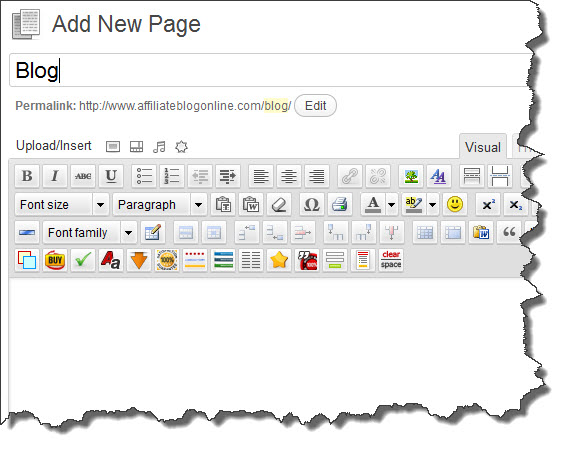 3. Click the Publish button to publish the page.
4. Go to Settings –> Reading and from the Posts Page drop-down box select the Blog page you just created in step 2.
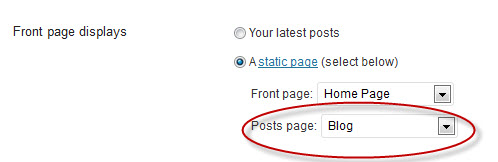
5. Click Save Changes.
Check out your website and you should now see a Blog option in the navigation bar. When you click on that you will be taken to your blog. If you don’t see it then it is probably because you have created a custom menu so you will need to go to Appearance –> Menus to add the Blog page to your main menu navigation bar.
What Sort of Content Can You Add to Your Static Home Page?
You really can add whatever you like to your static home page. Here are some options:
1. A Welcome box – A welcome section is a great way to introduce yourself and your website. Add your photo and a short blurb about who you are and why you started the website. This can work particularly well for product review sites as most people gain a sense of trust when they see a photo of a real person. Here’s an example:
 Welcome to my Cordless Drill Review site. My name is Paula and my goal with this site is to provide the best cordless drill reviews for all the major makes and models including Panasonic, Makita, Black and Decker, Dewalt and more. I hope you enjoy your stay and if you have any questions feel free to contact me.
2. The top reviews on your site – If you have purchased the Amazonian Profit Plan then you will know that we suggest that you start by creating five reviews for your website. You can promote those five reviews by linking to them from the home page. This is just a suggestion but you can create a heading called ‘Most Popular Reviews’ and under that add a thumbnail image of each product and next to each thumbnail add a short blurb about the product and a link to the review on your site. It might look something like this although we did use the Flexsqueeze theme to make it look as good as it does with the star ratings and the More Info button but it is simply a table which you can create in WordPress without the need for Flexsqueeze.
| POPULAR REVIEWS | ||
 |
Panasonic Cordless Drill The Pansonic XYZ Cordless Drill is one of the best on the market for the home handyman. Read our full review of the Panasonic Cordless Drill. |   |
 |
Makita Cordless Drill This is my personal favorite. The Makita ABC Cordless Drill is a must have for any home handyman. | |
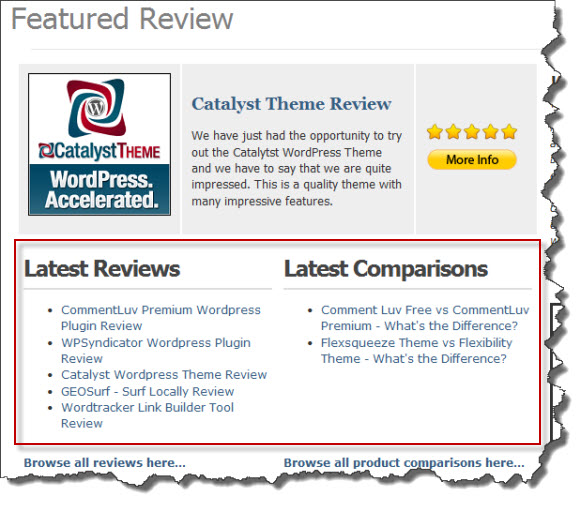
3. A directory menu linking to key posts/pages on your site. You can see an example of how this works below. The home page uses a static page and on the page is a simple directory with two menu headings – one for the latest reviews and one for the latest comparisons. You don’t have to manually add the links to that directory each time you publish a new post or page. It all happens automatically because you can use a free plugin called List Category Posts.
5. Videos – You can add your own video or grab a video from Youtube to add to your static home page.
6. Widgets – This one will only work if you have a theme that allows widgets on pages and not just in the sidebar. We recently reviewed the Catalyst theme which has this feature. If you read the Catalyst theme review on our Affiliate Reviews HQ site you will see how we managed to create a home page on one of our test sites purely with widgets. This makes creating a home page extremely easy because you don’t have to play around with tables which often don’t always work very well. Being able to drag a widget onto your home page has to be one of the easiest ways to make a professional looking page.
7. Content – Google loves content so ensure that you don’t just have a home page that is only full of video and images. Add a few paragraphs that include some of your top keywords.
These are just a few examples of what you can do with your home page. If you have any other ideas please let us know in the comments below.

Sign up to the Newsletter
I've got nothing to give you but good advice, tips, hints and valuable information on how you can become a better blogger.

Another excellent post…I have been using the static home page on lots of my sites, but had not heard of the category plugin. Thanks for the tip!
The category plugin is a real time saver. I was prepared to manually add the reviews to the home page but I thought there must be a plugin that could do it. So I was really happy to find it.
Paula,
A very timely post. I have been working with a lady completely new to blogging. While working with her in determining navigation menus the subject of whether or not the front page should be static. I just sent her the link to your post as you explained it probably better than I ever could.
Excellent, glad we could help Wendell.
Hi Paula! That is an excellent instruction on the static homepage thingy but I was just wondering is that done with WordPress? My site is just new and now that I’m working with online design creators instaed of things I have more control over such as Dreamweaver, Front Page etc., (I know,…dinosaur programs) I’m lost and still in the creation mode with mine and frankly I don’t like it cause I would rather have not published until I was completely finished. Thanks again Deb
Yes the instructions above are for WordPress. We used to use Frontpage in the past but I can tell you now that once you get used to WordPress you will never go back to Frontpage. I think we only have one site left using Frontpage but I would like to eventually transfer that over to WordPress as well.
I got rejected by google adsense for this type of website, they just don’t see little changes I made (update new link etc). But as you said its good for affiliate site, guide new prospectus client to know from a-z in single page.
Thanks for sharing
I’m not sure why Google Adsense would reject a site because it is using a static home page. Did they give you a specific reason for rejecting your site?
This is a brilliant post. I was actually tinkering with this idea in the past 2 weeks, so it’s very timely.
I was wondering, how do you create the tables that summarizes the reviews? Do you do it manually within the home page, or is there a plugin to make this easier?
Just a note, I have been using the Canvas Theme by WooThemes.
Thanks again
Key
We created those tables using the Flexsqueeze theme but if you don’t use Flexsqueeze you can download the TinyMCE Advanced plugin that will allow you to create tables.
That’s brilliant, thanks for that.
Hi Paula,
I really admire and appreciate your firm and well fabricated explanation on How to create Static Page.Now i can create it one for my blog too.Actually i am glad to know about that “List Category Posts” plugin.That is an update for me i admit.
Thank you for sharing such a great,valuable,informative and considerable content with us.
Good Luck and God Bless!!
With Regards!
Samuel Joshua
Glad we could help Samuel.
I’ve been playing around with static home pages for a while, good for EMD’s when you want to rank for the term and have content you wrote specific to it. Otherwise your home-page SEO is sort of all over the map, like it is on a regular blog (until you start building links and whatnot, to rank your inner pages).
What I like to do is use the homepage to direct traffic to where it counts most – like you guys do for the affiliate review site. Or here, with your feature area (I just bought Flexsqueeze myself and kicking myself for not doing it earlier).
Directing traffic where you want it to go and giving people as many ways to find what they want the way they want really helps (like “Under $100” or “$100-$200” etc. like Amazon does, for example). Good stuff, you two!
Flexsqueeze is good isn’t it? We use it on about 90% of our websites.
Also what is an EMD?
Sorry, I should say: Exact Match Domain, where the domain name matches the KW. Keyword. :)
Hi Paula,
This is a very good tutorial in adding static homepage on your blog. It’s very detailed and easy to understand. I know that this is kind of “small stuff” for experts but for starters, this is a great help in their end. Keep up the good work!
Thanks Veronica. We want to keep adding short tutorials like this to our site. We are even thinking of creating some videos as well. It’s often easier to explain things with a video.
A very straightforward and easy to understand explanation. I have a couple of blogs with the homepage as a static page – wish I could have read your post before I set them up :).
Sometimes it works well, other times (as you said in your post) having the blog as the homepage is a better option. I suppose that it’s a matter of experience, combined with the subject of the blog, as to when to use a static page.
I think a static home page, with rotating images linked to pages, works well on product review type blogs. I’d be interested to know what others thinks as to when to go with a static homepage and when to go for a pure blog.
I would like to hear what others think as well on this. I guess it all comes down to testing to see which works better.
I’ve been using almost all static homepages except my IM blog (which has reviews as static pages).
I can’t split-test this yet myself but wonder if anyone has that would like to share. (That’s 3 votes.) :)
James, you are the SEO expert here so you may be able to answer this question.
Does Google weigh a static page any differently than a blog summary type page?
With a static page, by definition, the information is not changing or being updated on a regular basis as it is with the usual blog format.
Or does Google only need to see that the content on the site as a whole is being regularly updated?
To my knowledge the official answer is I have no idea. :)
What happens on a static page setup is that every page has its own unique URL, hopefully keyword rich and all. You build links to it and it ranks for its terms…
On a summary page, you may show 10 or so blog posts. Over time, if you keep building links to your homepage, those URLs will get the lion’s share of the PageRank from the homepage, since you’re building links directly to your homepage…
Once those blog posts get retired into your archives, they lose a lot of that benefit from the homepage PageRank…but I’ve never personally tested the effects of that.
I only know of it from building links and watching the benefit of a homepage link on a blog give me a boost – only to later retire into the archives of that blog, and the boost ebbs.
But so long as you build internal links from one page to another on your site, and external, deep links from other websites to your inner pages, you can still rank these pages no matter what your homepage set up is…
Hope that makes sense. I’m not sure I helped answer your question, it’s based on my experience and not on any official Google documents.
I do know that in a video on YouTube – Google’s official “Webmaster Help” channel – Matt Cutts talked about how category pages weren’t considered high user-value and probably wouldn’t rank as highly…but he didn’t really elaborate.
That’s as close an ‘official’ answer as I can recall. Nothing to it but to experiment, really – and build links to any page you want to rank. Do that enough and it will eventually.
(Thanks for calling me ‘the’ SEO expert here, I learned a LOT from Paula and Wanda, though!)
Hi Paula and Wanda, I have toyed with both the static page and blog post settings for my blogs, and agree the static home page is better setting when selling affiliate products, as the blog has a traditional website look and feel, yet has the page rank advantage of a blog, since you add content to it.
Thanks again for another great article.
Ken
I must admit I prefer the static page on our product review sites but I often wonder whether Google favors a static page or if they prefer the typical blog look.
Hey Paula,
Thank you for the list catagory plug in, having bought the flexsqueeze them, I am certainly interested in trying it. I am also stuck on some niche ideas that I know I need to pick. I have the amazonian profit plan but for some reason nothing jumps out. Has that happened to you and if so what did you do? Thanks in advance.
We don’t really worry too much about choosing a niche. We start by choosing the products and then the niche will follow.
So head over to Amazon and look for products that meet the criteria in the ebook.
Of course you could always choose a niche that you are actually interested in. It makes it a lot easier to write content for it and you are more likely to stay interested in maintaining it.
Thanks for your tips! To tell you the truth, I expected it to be a bit difficult but you guys made a nice guide. Good thing about it is that it requires little programming skills, so it is easier to setup than a dynamic web page. Although the problem might be when we increase the number of static web pages, might have to result to automated software.
We work on the basis that quality is better than quantity so there should never really be a need for automated software to create pages. You can make a decent income online with just a handful of pages.
Great information here… I have to admit, I’m impressed by the number of plugins you have in the screenshot for your ‘blog’ example! I need to go through and research those a bit better, as it seems like a lot of bloggers/IMers make great use of those plugins.
There are some fantastic plugins these days. We are always so amazed at how easy it is to do different things with a blog compared to when we started many years ago.
Hi,
Thanks so much for this post. I have just started a new review site but wanted to use a different WordPress themes to the others I have used. But for the life of me I couldn´t work out how to make a static home page. Until I read this post that is.
Any I have made my home page a small piece of the review itself. I have had to do this manually but it seems to look fine. I have also put links to each post in the right hand column.
Have a look at what I mean at http://bestfoodmixerreviews.co.uk I think it looks okay but then I am biased of course.
Nigel
Very nice Nigel and great job with the reviews. They read extremely well.
Nigel, you have done a great job with your site.
You may already be aware of these but thought I would point them out if you weren’t. There are to outbound links of which you may not be aware: 1 is in your footer and is anchored as “affiliate marketing” and the other is in the last line of your privacy statement “churchill car insurance.”
Hi Wendell,
Thanks for your comments about my site and your advice. I have removed the link in the privacy statement, but I´ve searched everywhere to try and find the affiliate marketing outbound link to remove it.
I´ve looked in the footer php file but I can´t for the life of me find where it is.
I really would like to remove it too.
Any ideas how to go about this?
You’re using Matt Carter’s “affiliate” theme (or whatever he’s calling it – the source code showed it as “sleek”). I looked at that (a free WP theme) and didn’t use it because it’s a smart way for Matt to get free links for “Affiliate Marketing” pointing to his affiliate marketing blog.
On free themes, this is one of the issues: developers are usually pretty cool not doing stuff like that, but on this theme (from what I remember when I tried to use it), you can’t remove that link.
At least: I couldn’t find it in my theme files, it was in php or something and I couldn’t delete it (but I’m not a coder).
I’d recommend either buying Flexsqueeze (my fave theme so far) or just another free theme that ISN’T created by an affiliate marketer.
You can also try Theme Forest for cheap, good themes, but they cost a bit.
One that caught my eye was “VCandy” by Vibe Themes, it just launched.
Price is $19 for a single license, $29 for multiple website installations.
TOTALLY fast, and awesome looking (and cheap) and did I say awesome? And fast?
vibethemes.com/themes
James, it looks like there is a function call in the footer.php. Functions.php has some “scrabled eggs” code that actually calls a Base64 decoder. It is that code where the link is buried.
Nigel, I would agree with James’ assessment here regarding theme use.
Nigel,
I am not a coding expert and there are ways a coder seems to be able to hide what they do.
I find the following coding in your footer. I don’t know if you can find it in your footer.php or not.
This is what I found:
Best Food Mixer Reviews < a href="http://mattsmarketingblog(dot)com" r e l="nofollow" rel="nofollow">Affiliate Marketing.
Remove < a href="http://mattsmarketingblog(dot)com" rel="nofollow">Affiliate Marketing< / a>
Hi James and Wendell,
I´ve tried looking for that code in the footer.php but it just doesn´t show up.
Thanks for your input and advice any.
The problem is I really like the theme design, so until something else comes up I think I will keep working with this one for the time being.
Many thanks
Nigel
For one of my sites I am using the flex3 and there is a static post, my question I guess is it has a date. Should I remove that as it does not look good to have an old post if it will be static? Just wanted to get your thoughts.
We have removed the dates on a number of our product based review sites. I do think that people think that the review is outdated if they see an old date. So yes, I would remove the date on any static posts.
Paula, this is very good information on how to get particular stuff on the front page of our blogs. One problem I’ve had was getting one particular post to appear on the home page, and then I ran across a plugin called “posts in page”, which lets you include one or more posts in a page, and then I can do your method, and put that page on as the homepage, effectively putting my desired posts on the home page.
Pretty cool – thanks!
Do you have a link to that plugin David? I had a quick look but a few came up and I wasn’t sure which one it might be.
This tutorial a very good in adding static homepage on your blog. The detailed is easy to understand.thanks for this!
Thanks Gabriel, glad you liked it.
Hi Paula! I would first like to thank you for your quick response to my question. Second, wonderful and very informative site you two have and I’m so glad to have come across it. I know you can’t email/contact all who write but I am going to go for it anyway. After you mentioned the FrontPage thing I didn’t feel like the only one that was working the dark ages. I am 57 and had created a wonderful site for our business of 17 yrs that we just closed. So when I started doing this site creation thing online I felt like I didn’t know a thing. I had DHTML goin on in my site, 9 pages with all different content on them and well that is what I would like to do again and I just can’t seem to get that single, separate page thing with all the links on my home page. I now am spending more time trying to find the definitions of things like RSS, backlinks, gadgets, HTML/Jave script etc, etc, just to make things work..never mind adding content to the site/blog. Like backlink..what the heck is that. Laymans terms would be real nice sometimes in these sites that teach you. Yours has been pretty darn good. Anyway, thank you both for your site.
So what are you actually using to create your website – Frontpage or WordPress? Or is it the blogspot website that you have in your link?
Hi,Paula,
Thank you for another very helpful post, I am following you and in the process of writing my first product review but can’t make a decision of whether to choose focused niches or make a general broad niche website. For instance, blenders reviews or kitchen appliances review site. Which approach is more successful in your opinion?
Thank you,
Jemma
We have both types of sites Jemma and both work. It’s more about the content on the page. However, if I were making the decision in the example above, I would go with the blender reviews only because it is easier to manage when you go with a smaller niche. The bigger the site, the more work you have to do.
Hi Ladies! My question is about the product reviews. If I add a product to my site I don’t know where to put or write the product reviews. Because I am not working with WP and just using the online blog/site creators all I seem to be able to do is get the HTML code for the product (that took me forever to learn) and then once that is taken care of I get the pic of the product but I don’t know where to go when it comes to writing the review. When you get the code it’s not like it asks you whether you would like to add text or not. Thanks for any help. Deb
We might not be the best people to ask this question because we don’t use Blogger which is the blogging platform that you are using.
There must be some part of the admin area that you use that says “Create Post” or something similar. That’s where you type in your product review. Then you add the code for the product and the image to that page after you have done your review.
My suggestion is to look for blogger tutorials on the net or in Youtube. There are plenty of them and it will help you get the basics of using your blog.
Thank god for your post, lot’s of YouTube videos on this topic but still at a loss… thanks so much for setting me straight. :-)
Happy we were able to help, Dave.
Bingo Paula and Wanda,
Now why could I not have read this three years ago when I was fighting my first WP blogs?? I have been reworking the blogs that I am going to keep into static home and static post. Hard to beat when you are targeting one or two keywords to get going initially.
This post is going to help many people.
We like static home pages. We don’t use them on all our sites but on quite a few of them.
Hi Paula & Wanda,
Thanks so much for such great information and as has been mentioned earlier it is so great from a newbie point of view that the explanation is so easy to follow. I also would love the link to “posts in page” as referred to above, if he sends it to you. The video idea is excellent as it is easier to follow when you are looking over someones shoulder, if I could make a suggestion for this, when you are doing the videos don’t go to fast and move all over the screen clicking buttons, because you know what you are doing the newbie does not, as you can imagine I am saying this from experience, I have tutorials and it is so hard to follow as the person is not explaining fully and just moving all over the screen so fast and you are not sure what he has done and why, as I said just a small tip from a newbie prospective.
A couple of questions I have for myself firstly do you know of a theme that gives you the option to have a full screen width, I would love this if possible, also when your theme is not full screen do you know how to change the color of the area outside the actual content area, I want to make it white but cannot figure out how to do this.
Thanks again for such great content I will certainly be registering for your emails.
Take Care & Be Safe
Cheryl
Thanks for the advice re the videos Cheryl. We’ll keep that in mind as we do more videos.
As for the themes, we use the Flexsqueeze theme but I’m not sure it allows for a full width screen. It allows you to change the width of the blog but every screen is different so it may not cover all screen types.
If you are wanting to change the background color of your theme then I would suggest contacting the developer of the theme you use. They will know the code to change it. But if you want to try it yourself it will probably be in style.php(Go to Appearance–>Editor—>Select style.php and look for something that says ‘background color’)
Thanks Paula..Though it’s a small and easy to do but I was not sure about it…Thanks for sharing it..!!
I really appreciate your work Paula. I was pretty messed up with all the posts & sticky homepage thing. But now everything is clear as water.
Thanks!