We are going to be holding a contest on one of our blogs and have been looking for a WordPress plugin that will give our visitors the ability to vote for their favorite blog. My initial thought was that I would have no problem finding something suitable and I was even willing to pay for it! But unfortunately the options were limited and very disappointing.
However, I did end up finding a WordPress plugin called WP-Polls which as the name suggests provides the ability to add a poll to your blog. The only problem was that I was looking for something that would allow me to add an image of each blog so that our visitors could see exactly who they were voting for. My initial assumption was that this plugin wasn’t capable of doing that so I kept looking for something that did.
During my search I came along a blog post at the zebida.com website written by Hesham. It describes how to add thumbnails and links using the WP-Polls plugin.
YES!…now I had the answer I was looking for. So my initial assumption that I couldn’t add images was wrong but I didn’t care as I now had everything I needed to create the blog contest.
How to Use WP-Polls
If you want to create your own blog contest using WP-Polls then this is what you need to do:
Step 1: Upload the WP-Polls plugin to your blog and activate it.
Step 2: Click on the Polls option on the left hand menu on your blog Dashboard and select Manage Polls. It will most likely be at the very bottom of the screen.
Step 3: You should already see a Poll listed. This is just an example poll but you can use this one instead of creating a new one. So go ahead and click the Edit link next to that poll.
Step 4: On the Edit Poll screen you will be able to enter the details of your contest so just overtype the information in the Poll Question and Poll Answer sections and select the options that suit you in the remaining fields. In the Poll Answer fields you will be able to add html in order to add an image but we will get into that in a little more detail below. For the moment just enter text into these fields.
Step 5: Click Edit Poll to save the changes.
Step 6: Add a new post and in the html part of the post add the following code: [poll id="1"]where ‘1’ is your poll ID. You can find the poll id in the Polls list on the Manage Polls page.
Step 7: Now save your post and preview it and you should now see your poll on the page.
Now for the Good Stuff…
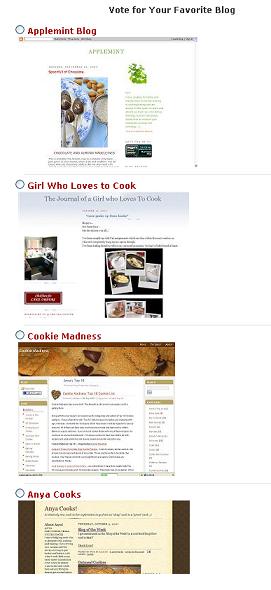
So if you are like me you are probably wanting to add some images to each option. The code below is what I used for my blog competiton. It displays the radio button above the image, provides a link to the website and also includes a horizontal line under each image.
To use this code you just need to paste it into the ‘Poll Answer’ fields in the Manage Polls section. Obviously you will need to replace the links to correspond to the correct urls and image sources that you will be using. You can also play around with this if you know a bit of html – bold the text etc. I did notice that these fields were limited to only so many characters so you won’t be able to go too crazy here.
Title of Blog Here

You can see in the image below exactly where to insert this code. Once the html has been entered just click the Edit Poll link to save your changes.
 |
So now if you have done everything right you should see something like this on your blog post.
 |

Sign up to the Newsletter
I've got nothing to give you but good advice, tips, hints and valuable information on how you can become a better blogger.

Thanks for your post about WP-poll, i have installed the plugin but i don’t want it in a post, i want it as a side widget, how do i add the poll to my side widget?
Please reply
I’m not sure how you would do that. Try contacting the creator of the plugin here – http://lesterchan.net/wordpress/readme/wp-polls.html
Fantastic site! Love the content you have on right here. Please maintain the very good work and I are going to be confident to visit quite frequently. Thanks a lot!
Thanks Paula!! :D
I will use this, and now its simpler to add a picture to my poll answers!
Awesome. I was wanting to do a voting contest for bands, and found my options pretty limited. This is working out great for me so far. Thanks!